Can I partially exit my Smartfolios investment?
For Partial Withdrawal in Ace FundTech, Magic FundTech, Prime FundTech, Emerging MidCap, Early Discovery, Ultra High-Risk, Titans Top Tier, Micro Titans Smallcap and Prestige High Frequency Strategy Baskets, follow these steps:
1. via Smartfolios Web:
Step 1. Login to Smartfolios Web application using Flip/MyGeojit/FundsGenie credentials.
Step 2. Go to "My Folios" and click on "View" Button of your active Folio.
Step 3. Click on "Additional Investment/ Withdrawal" Button -> "Partial Withdrawal" Radio Button.
Step 4. Click on the Amount Buttons with the amount to be withdrawn. Click more than once if to withdraw more. Maximum withdrawal amount available for the folio will be shown at the bottom of the pop-up. Withdrawal can be placed in multiples of Rs 10,000.
Step 5. Upon clicking on the "Confirm" Button, a confirmation will be shown that request has been captured.
2. via Smartfolios Mobile App:
Step 1. Login to Smartfolios Mobile app.
Step 2. Go to "My Folios" and click on the active folio card.
Step 3. Click on "Withdraw" button at bottom of the page.
Step 4. In the "Partial" tab, maximum withdrawal amount available for you will be shown. Withdrawal can be placed in multiples of Rs 10,000. Click on the multiplier button to withdraw more.
Step 5. Upon clicking on the "Submit" button, a confirmation will be shown that request has been captured.
Note: Recommendation against the Partial Withdrawal request will be generated and sent to on the next trading day, along with any other sells if any and will be sent for execution after accepting.
For Partial Withdrawal in other Lumpsum Baskets, follow these steps :
1. via Smartfolios Web:
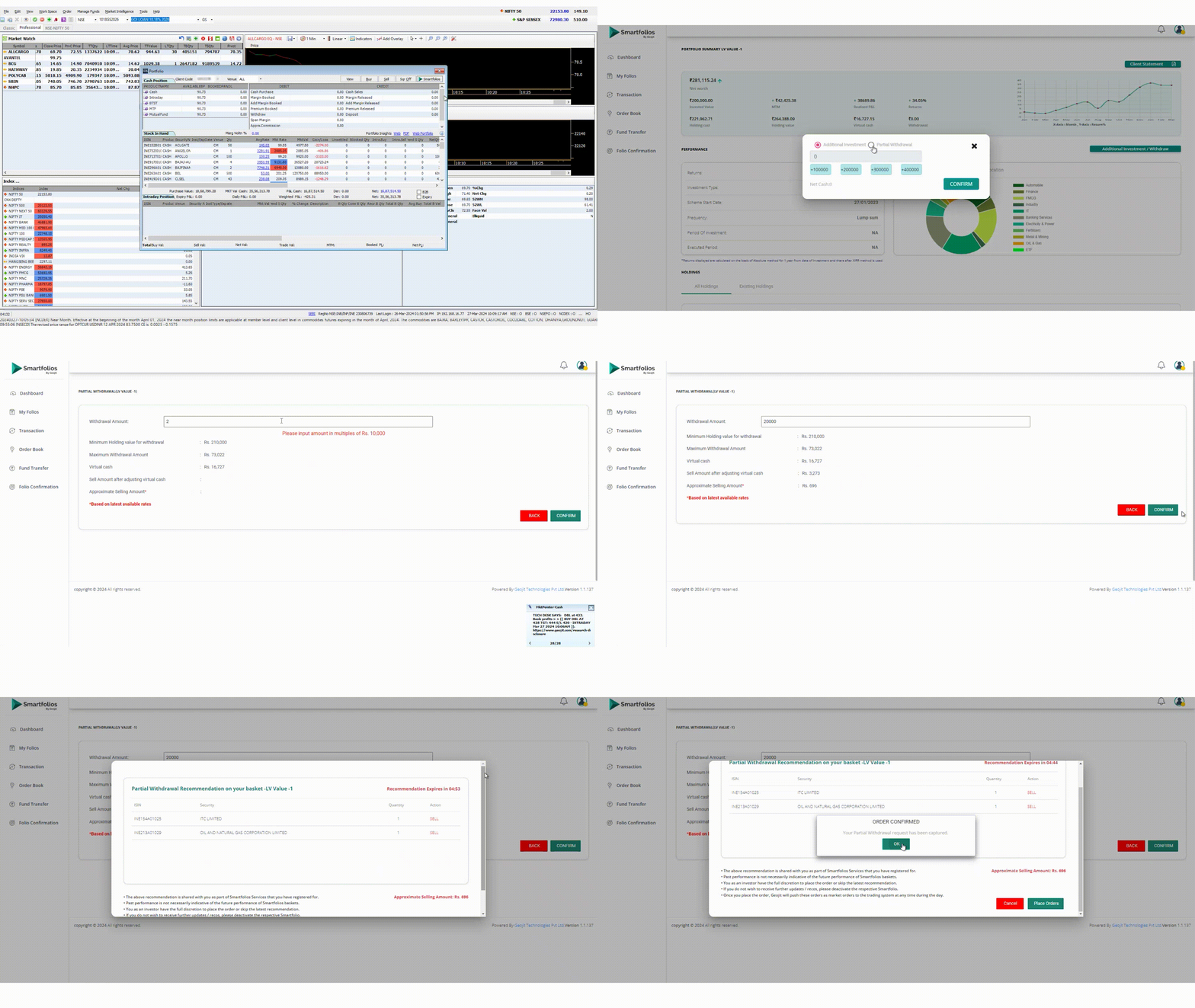
Step 1. Login to Smartfolios web application using Flip/MyGeojit/FundsGenie credentials.
Step 2. Go to "My Folios" and click on "View" Button of required folio.
Step 3. Click on "Additional Investment/ Withdrawal" button.
Step 4. Click on the "Partial Withdrawal" radio button.
Step 5. A pop-up with description and methodology of Partial Withdrawal will be shown. Click on "Confirm" Button in this pop-up.
Step 6. A pop-up will be shown requesting to continue if tried between 9:30 a.m. and 2:30 p.m. on trading days. Click on the "Confirm" Button in this pop-up.
Step 7. A pop-up will be shown with details of minimum networth required for partial withdrawal, maximum withdrawal amount allowed and virtual cash in that folio. If folio doesn't meet minimum requirements, respective message will be shown. Partial withdrawal amount input field will be editable if minimum requirements are met.
Step 8. After partial withdrawal amount is input, net approximate withdrawal amount will be calculated in real time and shown after considering available virtual cash, cash equivalents like Liquid ETF and number of stocks that can be sold as per the provided amount.
Step 9. Change Withdrawal amount until Approximate Selling amount is enough before proceeding.
Step 10. Click on "Confirm" Button in the pop-up.
Step 11. The stocks list along with number of units which will be sold will be shown. Click on "Confirm" within the expiry of the generated recommendations.
Step 12. Final confirmation pop-up will be shown with the stocks list and units which will be sold. Click on "Place Order" if okay to execute else click on "Cancel".
Step 13. Upon clicking on "Place Order" button, a confirmation that request has been captured will be shown.
Step 14. The withdrawal request will be sent for execution and will be processed at exchange as per market conditions and availability of holdings.
2. via Smartfolios Mobile App:
Step 1. Login to Smartfolios Mobile app.
Step 2. Go to "My Folios" and click on your active folio.
Step 3. Click on "Withdraw" button.
Step 4. In the "Partial " Tab, maximum withdrawal amount available for you will be shown. Withdrawal can be placed in multiples of Rs 10,000. Click on the multiplier button to withdraw more.
Step 5. Change Withdrawal amount until Approximate Selling amount is enough before proceeding.
Step 6. Click on the "Submit" button.
Step 7. The stocks list along with number of units which will be sold will be shown. Click on "Confirm" within the expiry of the generated recommendations.
Step 8. Click on "Place Order" if okay to execute else click on "Cancel".
Step 9. Upon clicking on "Place Order" button, a confirmation that request has been captured will be shown.
Step 10. The withdrawal request will be sent for execution and will be processed at exchange as per market conditions and availability of holdings.
NOTE:
This feature is accessible when there are no pending recommendations in the folio for the day and virtual cash is positive. Please contact Branch or Customer care when virtual cash is negative.
This feature will be available only between 9:30 a.m. and 2:30 p.m. on trading days.
This process does not consider P/L of the Holdings and stocks are sold as per their allocation in respective model basket.
Holdings will be sold only after reduction of virtual cash and cash equivalent holdings like Liquid ETFs from the basket while partial withdrawal is processed. So if partial withdrawal amount is less than virtual cash of the folio, then only virtual cash will be adjusted and no holdings will be sold.
Still need help? Create Ticket


